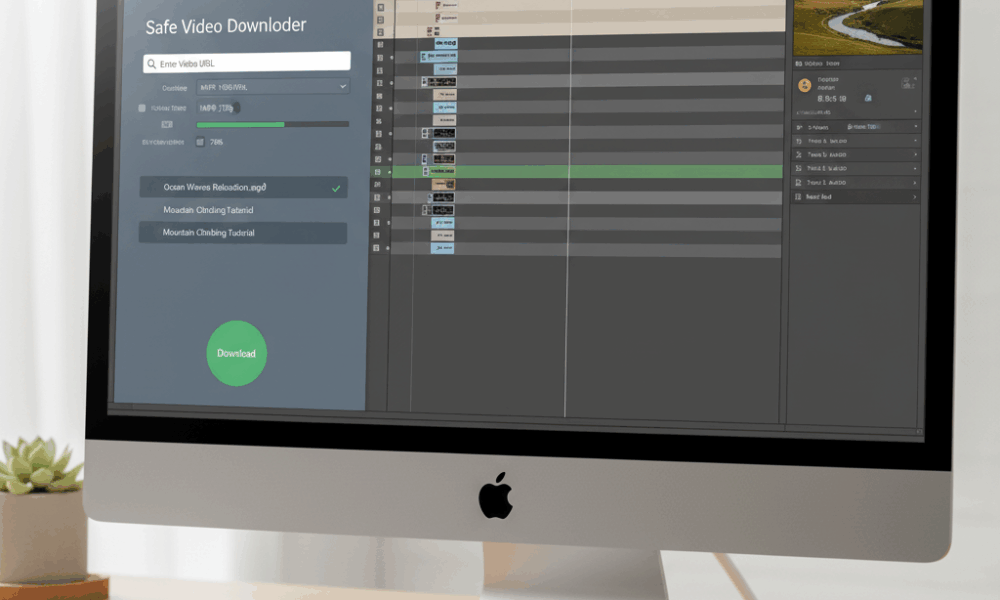
Safe and legal ways to download YouTube videos in 2025: what creators must know
Before using any video downloader, there is a vital distinction between what the platform allows and what the law permits. YouTube’s Terms of Service restrict saving videos unless the feature is provided in‑app or the creator gives explicit permission. That means most third‑party tools fall into a gray zone with YouTube, even if some uses may qualify as Fair Use under copyright law. Creators who plan to download YouTube videos for edits, commentary, or classroom materials should understand this landscape to protect their channels and their work.
Consider a teaching studio that runs weekly critique sessions. The team often needs stable, high‑resolution clips for frame‑by‑frame analysis without buffering, ads, or algorithmic interruptions. The safest route is to rely on YouTube Premium for temporary offline video access or to leverage content explicitly licensed for reuse. Yet when projects require editing inside a non‑YouTube workflow, the studio pivots to strategies that respect rights and minimize risk, like downloading their own uploads via YouTube Studio or archiving entire channels with Google Takeout.
Legal building blocks for an easy YouTube download plan
Several official routes exist, each optimized for a different need. Premium is great for viewing without ads, but its downloads are DRM‑locked and expire. Channel owners can always retrieve their own originals. And Creative Commons content can be reused when attribution and license terms are honored. The result is a practical matrix: use sanctioned methods first; if third‑party tools are needed for editing, apply Fair Use principles and document your rationale.
- ✅ YouTube Premium for offline video access within the app (consumption, not editing) 📱
- ✅ YouTube Studio and Google Takeout to download your own content for archiving 💾
- ✅ Creative Commons videos with proper attribution and license compliance 📝
- ⚠️ Third‑party apps: potential ToS issues; follow Fair Use principles and keep usage transformative 🎨
- 🛡️ Use privacy‑respecting browsers and security tools; see this practical overview of AI‑ready browsers and cybersecurity 🔐
Fair Use in the United States is evaluated on four factors: purpose and character (is it transformative?), nature (factual vs. creative), amount used (only what’s necessary), and market effect (does your use substitute for the original?). Many educational critiques and commentary formats align with these principles, but documentation helps. Keep notes on why the portion used is essential, how it alters meaning, and why it won’t harm the original market.
Creators also benefit from provenance. If a tutorial must be referenced later, saving a copy of your own uploads is simply good data hygiene. For educational remixing, verify the license on any Creative Commons video. If attribution is required, add it to your description and in‑video credits. Teams that juggle lots of sources often couple downloads with transcriptions and subtitles for accessibility. When subtitles are needed, workflows that incorporate resources like reliable subtitle libraries can streamline multilingual captioning and search.
For discovery of new, compliant sources, many production teams now lean on AI‑accelerated search to locate CC‑licensed clips faster. Guides like the latest search innovations explain how to filter, rank, and verify sources rapidly. That efficiency reduces the temptation to grab the first clip encountered and encourages disciplined, rights‑respecting curation.
| Method 🧭 | Allowed by YouTube? ✅/❌ | Editing in external apps 🎬 | Quality/DRM 🔒 | Risk profile ⚠️ |
|---|---|---|---|---|
| YouTube Premium | ✅ (in‑app only) | ❌ (DRM‑locked) | 1080p cap, expires ⏳ | Low risk 🟢 |
| YouTube Studio (own videos) | ✅ | ✅ (MP4 import) | 720p–1080p typical 🎯 | Low risk 🟢 |
| Google Takeout | ✅ | ✅ | Full‑res archive 📦 | Low risk 🟢 |
| Creative Commons | ✅ (license terms) | ✅ (with attribution) | Varies by source 📚 | Low–Medium 🟡 |
| Third‑party downloaders | ❌ (ToS) | ✅ (if obtained) | Up to 4K/8K, no DRM 🖥️ | Medium–High 🟠 |
The practical takeaway is simple: start with official tools, escalate only when the project truly requires external editing, and log your Fair Use reasoning when applicable. That discipline keeps research efficient and channels safe.

Step-by-step download tutorial: easy YouTube download on any device
A smooth workflow avoids dead ends, broken links, and security pitfalls. This section maps an easy YouTube download path for Android, iOS, Windows, macOS, and Linux—balancing convenience with quality and safety. The example production team here, “Aurora Media,” needs a quick study copy of a public video to analyze pacing and hook timing, then a high‑quality local file for editing tests.
Official, quick steps for offline viewing
For viewing without edits, YouTube Premium is the smallest risk surface. It’s fast, clean, and legal for video saving within the app, though editing isn’t supported due to DRM.
- 📲 Open the YouTube app and find the video.
- ⬇️ Tap Download (or Save Offline) and choose the quality.
- 🗂️ Access it later via Library → Downloads.
Educators often prepare on public transit or in low‑connectivity spaces. Premium’s temporary offline mode makes rehearsals predictable and ad‑free. Still, once the discussion requires screen‑level edits, the team transitions to desktop tools that produce editable files.
Desktop editing workflow: reliable tools and a clean process
On a computer, a dedicated app is the most stable choice. Tools like 4K Video Downloader are simple and robust for non‑technical users, while yt‑dlp offers power and reliability for advanced operators. GUI wrappers such as Stacher bridge the gap by exposing yt‑dlp’s muscle through a friendly interface.
- 🖥️ 4K Video Downloader: install, copy video URL, click Paste Link, pick MP4/MKV and resolution, then download ✅
- 🧩 Stacher (yt‑dlp GUI): paste URL, select format and quality, choose subtitles or audio‑only, run download ✅
- 💡 Tip: update the app regularly to keep compatibility and avoid throttling issues ⚡
Web tools exist for one‑off tasks, but choose carefully. Ad‑free options like Cobalt.tools are appreciated for privacy, while some legacy sites now funnel HD into paywalls or aggressive popups. When in doubt, consult a curated, up‑to‑date resource list; comparisons like AI search tool roundups can help power users verify trustworthy sources faster.
Mobile workflows can remain viable when the desktop is out of reach. However, iOS restricts background downloads from the browser, and Android devices may need extra permissions for file management. The most resilient approach is to queue links on mobile and process on desktop later—mirroring how many creators manage batch tasks.
| Platform 💻 | Method 🔧 | Quality 🎥 | Editing‑ready? ✂️ | Notes 🗒️ |
|---|---|---|---|---|
| Android | Premium in‑app | Up to 1080p | ❌ (DRM) | Great for viewing on trips 🧳 |
| iOS | Premium in‑app | Up to 1080p | ❌ | Storage managed by app 📦 |
| Windows/macOS/Linux | 4K Video Downloader | Up to 4K/8K | ✅ | Simple UI, batch friendly 📚 |
| Windows/macOS/Linux | Stacher (yt‑dlp) | Up to 4K/8K | ✅ | Advanced options, subtitles 🌐 |
| Any browser | Cobalt.tools | Up to 1080p | ✅ | Ad‑free, privacy‑minded 🔐 |
By splitting “watch offline” from “edit offline,” Aurora Media keeps risk low while preserving flexibility. That separation is the backbone of a reliable download tutorial in 2025.
Best video downloader and YouTube video converter tools (2025 edition)
The market of video downloader utilities changes quickly. A robust 2025 toolkit prioritizes quality, safety, and automation—without sacrificing usability. Tools like 4K Video Downloader and yt‑dlp are consistently praised for stability, while Stacher and ClipGrab help users who prefer graphical interfaces. For “just one clip right now,” privacy‑respecting web apps can be enough, but treat them as situational aids rather than core infrastructure.
Choosing the right tool for the job
Each option trades convenience for power. Desktop apps maintain predictable performance, support playlists, and often fetch separate video/audio streams for higher fidelity. Command‑line tools shine in batch work, automation, and resilience to site changes. Browser extensions are attractive, yet Chrome’s store limits YouTube downloaders, and even reliable Firefox extensions require caution due to potential site‑breaking updates.
- 🧠 Power users: automate with yt‑dlp and post‑processing (e.g., FFmpeg merges) 🤖
- 🧩 GUI fans: Stacher brings yt‑dlp power to a friendly interface 🪄
- 🚀 Fast one‑offs: Cobalt.tools is ad‑free; legacy sites like Y2Mate often add friction ⚠️
- 🎚️ Converters: ClipGrab acts as a YouTube video converter to MP3/MP4/OGG 🎵
- 🔒 Security: favor open‑source or well‑vetted tools; this primer on open‑source collaboration explains why community scrutiny matters 🛡️
It’s also useful to think about how tools respond to platform changes. Open source utilities tend to ship fixes quickly because they can draw from an engaged developer base. Articles about advances like algorithmic verification breakthroughs illustrate the momentum behind community‑led reliability. For creatives juggling schedules, that reliability means fewer stalls mid‑project.
Teams with multi‑region audiences may add dubbing, AI captioning, and multi‑language descriptions to their pipeline. For that, retaining high‑quality masters and clean audio tracks is crucial. Combine downloads with transcription and subtitles; as noted earlier, resources like subtitle libraries and search can accelerate accessibility work.
| Tool 🧰 | Type 🏷️ | Best for 🎯 | Safety rating 🛡️ | Notes 🗒️ |
|---|---|---|---|---|
| 4K Video Downloader | Desktop app | High‑quality batches | ⭐⭐⭐⭐⭐ | Playlists, 4K/8K, simple UI ✨ |
| yt‑dlp | Command line | Power users & reliability | ⭐⭐⭐⭐⭐ | Automation, fast fixes ⚙️ |
| Stacher | GUI for yt‑dlp | Ease without code | ⭐⭐⭐⭐ | Subtitles, audio‑only, presets 🎛️ |
| ClipGrab | Desktop app | YouTube video converter | ⭐⭐⭐⭐ | Open‑source, MP3/MP4/OGG 🔄 |
| Cobalt.tools | Web app | Quick one‑offs | ⭐⭐⭐ | Ad‑free, 1080p cap 🌐 |
| Firefox + Video DownloadHelper | Browser extension | Integrated downloads | ⭐⭐⭐ | Chrome store limits apply 🧩 |
| Y2Mate | Web app | Legacy familiarity | ⭐ | HD paywalls/redirects, caution ⚠️ |
Pick one primary tool for production and one lightweight backup for emergency use. This redundancy keeps the YouTube download pipeline dependable when deadlines loom.

From YouTube download to content creation: editing, converting, dubbing, and offline video access
Getting the file is only the beginning. The rest of the value emerges as teams refine, annotate, and adapt content for multiple contexts—classrooms, shorts, podcasts, localized channels, and internal training. A modern pipeline blends video saving, format conversion, noise‑free audio extraction, subtitles, and metadata optimization.
Post‑download transformations that pay off
Most editors prefer MP4 (H.264/AAC) or MKV for broad compatibility. If the source arrives as separate video and audio tracks, tools typically merge them automatically. When creating highlight reels or turning interviews into podcasts, converting to MP3 is common—this is where a YouTube video converter like ClipGrab or built‑in yt‑dlp options shine. To maximize reach, add multilingual captions and descriptions; high‑quality subtitles from resources such as open subtitle repositories can accelerate this step.
- 🎬 Normalize formats: export master files in high bitrate for flexible edits
- 🎧 Extract clean audio for podcast versions or transcript alignment
- 🌐 Add multilingual subtitles and search‑friendly descriptions
- 📱 Create vertical crops for Shorts/Reels while preserving legibility
- 🧭 Keep a metadata sheet with titles, tags, and attributions
Localization is a proven growth lever. Teams that dub or caption content for additional regions see faster discovery and longer watch times, particularly when titles and descriptions are translated with cultural nuance. To plan expansion, research what’s trending and how viewers search in target languages—analyses comparing AI‑assisted discovery tools, such as regional availability overviews, provide helpful context when prioritizing markets.
Case study: the productivity of a rights‑respecting workflow
Consider Aurora Media’s weekly breakdowns of viral storytelling. The team downloads its own uploads via Google Takeout for archiving, references publicly licensed Creative Commons clips when demoing techniques, and documents Fair Use rationale for commentary segments. Captions are sourced and cleaned; versions are rendered for 16:9 tutorials, 9:16 shorts, and audio‑only podcasts. Finally, they maintain a short “editor’s LUT and presets” sheet to keep color and loudness consistent across formats.
| Task 🧱 | Tooling 🔧 | Output 📦 | Why it matters 🌟 |
|---|---|---|---|
| Archive originals | Google Takeout | Full‑res masters | Disaster‑proof catalog 🛟 |
| Editable copies | 4K Video Downloader / Stacher | MP4/MKV at 1080p–4K | Ready for NLE timelines ✂️ |
| Audio extraction | ClipGrab / yt‑dlp | MP3/WAV | Podcast and transcripts 🎙️ |
| Subtitles | Subtitle sources | SRT/VTT | Accessibility + SEO 🔍 |
| Localization | Translation + metadata | Localized titles/descriptions | Global discovery 🌍 |
By separating “download,” “convert,” and “publish,” teams avoid chaos and shorten feedback cycles. That modular approach keeps the pipeline fast even as content volume grows.
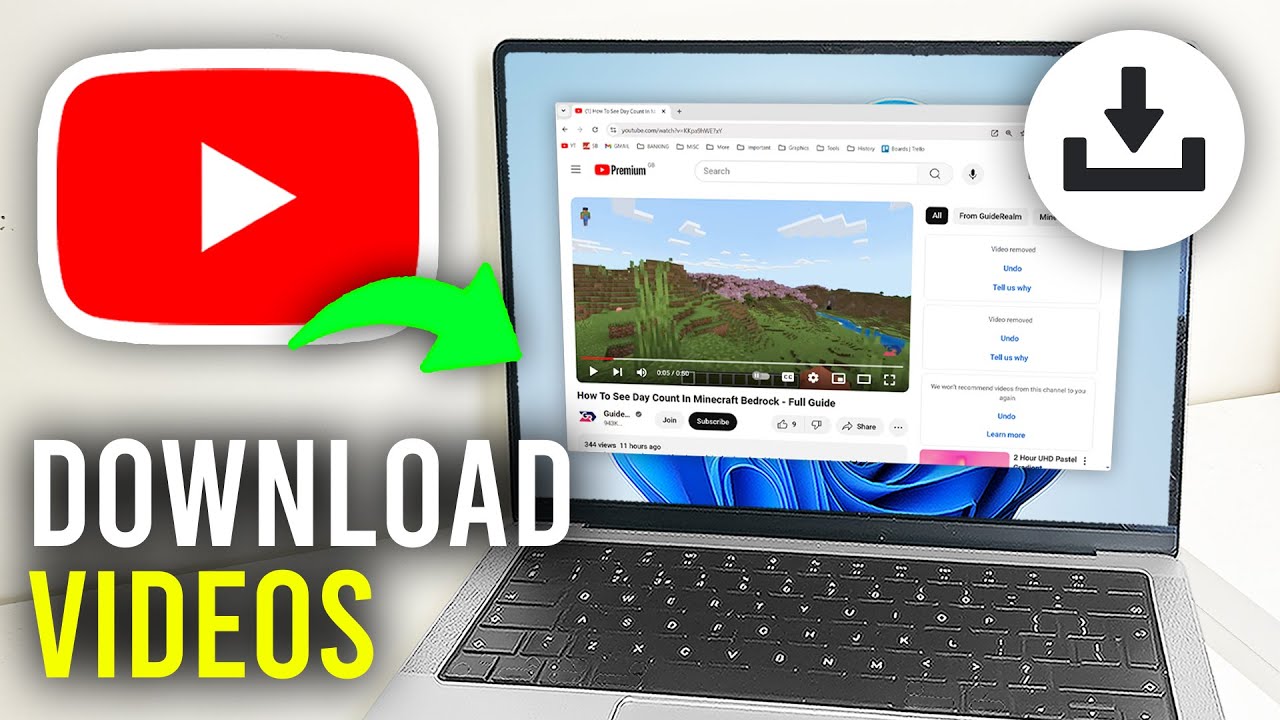
Looking beyond downloads, many creators experiment with AI visuals and brand assets. Explorations like text‑to‑image workflows can enrich thumbnails and chapter art, supporting stronger click‑through rates and watch retention.
Troubleshooting, performance, and security for a smooth YouTube download workflow
Even the best guide meets real‑world friction: throttled speeds, odd errors, and ISP quirks. A robust troubleshooting playbook keeps momentum high. The most common issues trace back to network congestion, outdated software, insufficient disk space, or browser interference. Add to that the occasional server‑side change and you’ve got a recipe for retries—unless you harden your setup.
Quick diagnostics that solve most problems
Start by confirming connectivity stability and available storage. If speeds swing wildly, check if background services are hogging bandwidth. On Windows, certain drivers and services can spike latency; overviews like network service behavior help pinpoint culprits. On macOS and Linux, watch for aggressive security prompts that sandbox file writes. If a download sits in “queued” states, treat it like email that won’t send—walk through a concise checklist similar to a queued‑message fix to clear blockers.
- 🚦 Update the downloader to the latest version before retrying
- 🧹 Clear temporary folders and ensure 20% free disk space
- 🔁 Switch servers/formats: try MP4 vs. MKV, 1080p vs. 720p
- 🌐 Change DNS or test a different network to isolate the issue
- 🛡️ Scan for malware; avoid sites with popups or forced redirects
Strong cybersecurity hygiene matters. Always verify checksums for installers, keep browsers patched, and prefer tools with transparent development. Browser hardening advice in security‑focused browsing guides transfers directly to safer downloads by blocking malicious scripts and trackers.
Performance tuning for batch and playlist work
Batch jobs magnify tiny inefficiencies. Organize folders by project and date, pre‑allocate space, and set concurrency to sensible levels. Over‑parallelizing can trigger rate limits; under‑parallelizing wastes time. If a tool offers a “smart remux” feature, use it to ensure compatibility with older editors without re‑encoding. Some web apps even provide a local, lossless remux that never leaves your machine, preserving privacy.
| Problem 🧩 | Likely cause 🔍 | Fix 🚑 | Prevention 🛡️ |
|---|---|---|---|
| Slow downloads | Bandwidth contention | Pause sync apps; try off‑peak | Schedule batches at night 🌙 |
| File won’t import | Container mismatch | Remux to MP4/MKV | Use editor‑friendly presets 🎯 |
| Stuck in queue | Permissions or temp cache | Run as admin; clear cache | Dedicated download folder 🗂️ |
| Audio out of sync | Missing merge step | Enable auto‑merge | Keep tool updated 🔄 |
| Browser popups | Aggressive ad scripts | Use trusted sites | Content blockers + HTTPS 🧱 |
When testing new tools, research first. Curated roundups like the future of search highlight how to surface credible utilities faster. If collaboration is involved, keep a shared troubleshooting doc so teammates can replicate fixes. That muscle memory transforms “What now?” into “Done.”
For context on staying current with tech shifts around content and gaming ecosystems, browsing pieces like platform updates or cloud gaming launches can sharpen instincts about performance trends and network behavior that indirectly impact download stability.
Strategic “why” behind downloading: analysis, education, and global reach
Behind every step-by-step download checklist sits a strategic motive: analyze hooks, dissect pacing, teach technique, or prepare multilingual versions that reach new audiences. The most successful creators treat downloads as a research input, not the end goal. They use local files to run A/B edits, annotate structure, and model their own storytelling without copying. That’s how systematic analysis turns into distinct creative identity.
Research and transformation over imitation
In workshops, producers often ask: “Is it legal to study and quote clips in a critique?” The answer lies in transformation. If the work adds commentary, education, or parody, uses only what’s needed, and doesn’t substitute for the original, Fair Use may apply. Teams keep a short rationale log attached to each project, noting why specific seconds were included and what new insight they create. This habit both clarifies thinking and reduces risks.
- 🔎 Analyze structure: hooks, retention dips, cuts per minute
- 🧭 Map storytelling beats to music and motion
- 🧪 Prototype two cuts to test pacing hypotheses
- 🌍 Localize titles/descriptions to match search intent
- 📚 Attribute licensed sources clearly in descriptions
Many teams now explore AI‑assisted ideation for titles, thumbnails, and scripts. Cross‑reading tool comparisons such as AI research guides helps pick assistants that speed up prep work without diluting voice. For visual pipelines, inspiration from AI image generation walkthroughs can inform thumbnail experiments that boost CTR.
| Goal 🎯 | Download role ⬇️ | Transformation step 🔧 | Outcome 📈 |
|---|---|---|---|
| Competitive analysis | Local copy for frame study | Annotate hooks, rhythm, structure | Faster, sharper scripts 📝 |
| Education | Short clip excerpts | Voiceover critique + on‑screen notes | Clearer teaching moments 🎓 |
| Localization | High‑quality master | Subtitles, dubs, metadata | Broader discovery 🌐 |
| Archiving | Channel backup | Version control and tagging | Resilience + reuse ♻️ |
When the objective is clear, the choice of tools and formats becomes obvious. That focus is the difference between collecting files and creating value with them.
For more tactical reading across digital tooling and productivity, many teams keep a rotating bookmark list—everything from state‑of‑the‑art AI roundups to curated free tools that spark new workflow ideas. Even if unrelated to video, the habit of scanning high‑quality tool digests translates into better decisions across the entire production stack.
Is it legal to download YouTube videos for editing?
Using third‑party tools to download generally violates YouTube’s Terms of Service. However, some downstream uses may qualify as Fair Use (e.g., commentary, criticism, education) depending on purpose, amount used, and market impact. The safest routes are YouTube Premium (in‑app offline viewing), downloading your own uploads via YouTube Studio or Google Takeout, or using Creative Commons videos with attribution.
What’s the safest way to get an editable file?
A dedicated desktop app is the most reliable choice. Tools like 4K Video Downloader or yt‑dlp (via Stacher if you prefer a GUI) offer stable quality, playlist support, and fewer security risks than random websites or extensions. Keep everything updated to avoid throttling and format issues.
Which formats import best into editors?
MP4 (H.264 video + AAC audio) is the most broadly compatible. MKV is also stable and often used for high‑quality sources. For audio‑only, MP3 or WAV is common. If a file won’t import, remux (container swap without re‑encoding) to MP4 for maximum compatibility.
How can downloads be faster and more stable?
Schedule batches during off‑peak hours, pause background sync apps, and ensure at least 20% free disk space. Use wired connections when possible, and keep your downloader updated. If jobs stall, clear temp folders, try a different resolution, or switch networks/DNS to isolate the bottleneck.
What’s the difference between downloading and converting?
Downloading retrieves the source file, while converting changes its container or codec (e.g., MKV to MP4, or MP4 to MP3). Many tools combine both steps so you end up with the exact format needed for your editing software or distribution target.

Aisha thrives on breaking down the black box of machine learning. Her articles are structured, educational journeys that turn technical nuances into understandable, applicable knowledge for developers and curious readers alike.

Comments are closed