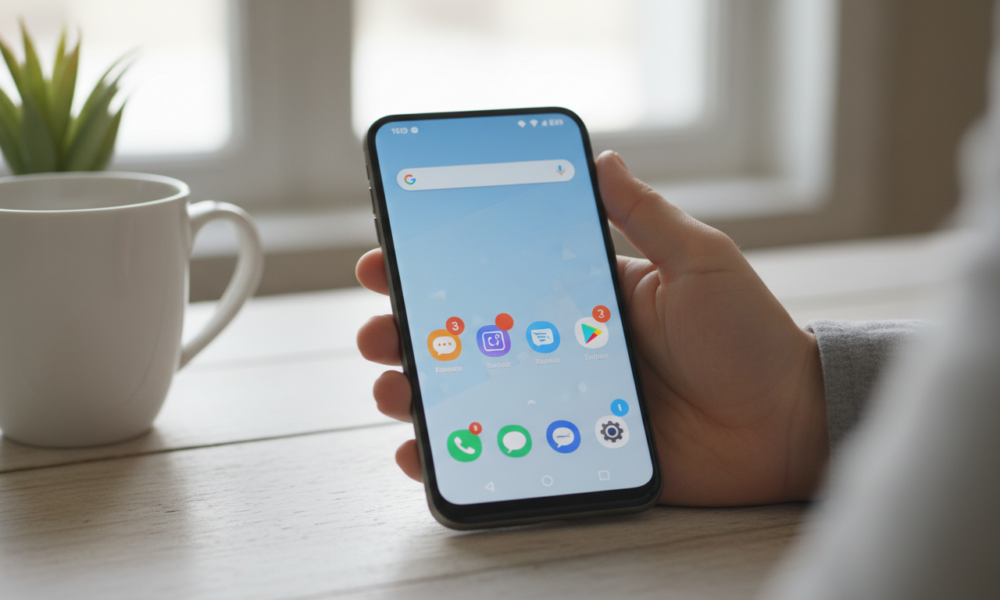
Mastering Visual Alerts: How to Enable and Customize Pixel Notification Dots
In the fast-paced digital landscape of 2025, managing the influx of information on our smartphones has become an art form. For many users, the difference between staying organized and feeling overwhelmed lies in small visual cues. Pixel notification dots serve as subtle yet powerful indicators, letting you know exactly which apps demand your attention without pulling down the status bar. Whether you are rocking the latest Google Pixel 9 Pro XL or optimizing an older Android device, mastering these small colored circles can significantly enhance your Android customization game. Let’s explore how to fine-tune these alerts to suit a dynamic lifestyle.
Activating Notification Dots on Pixel Devices
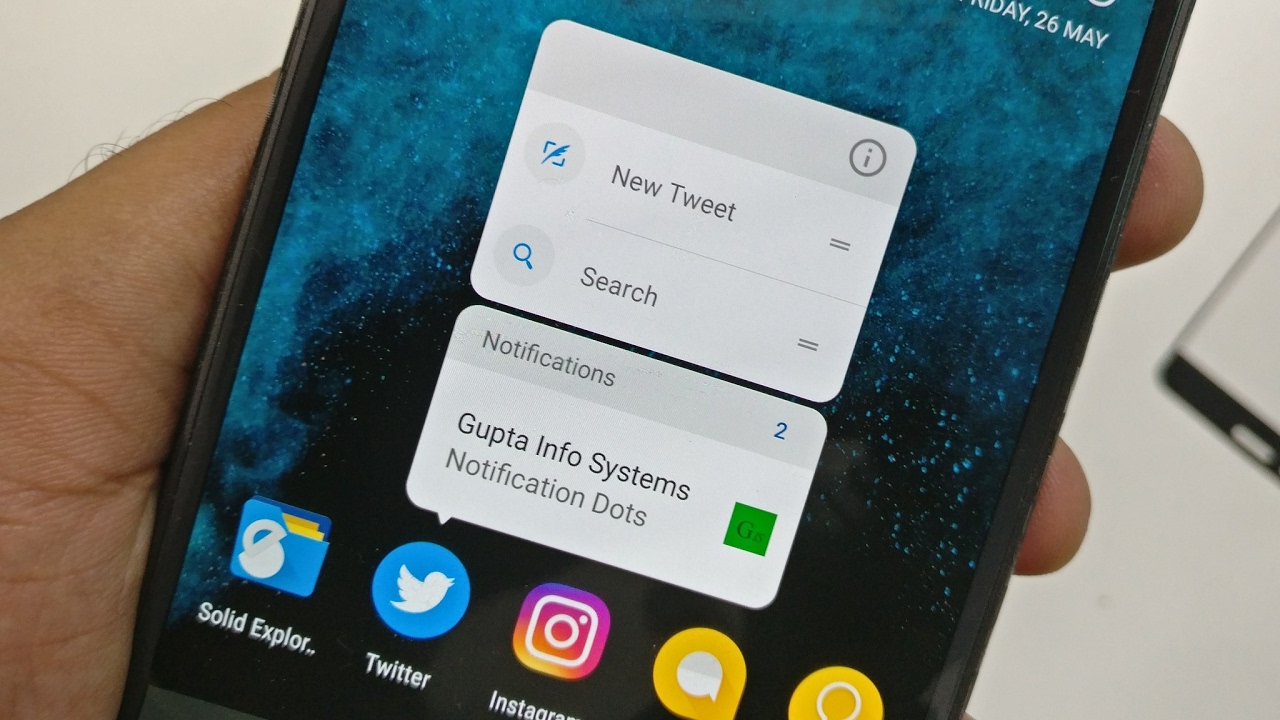
The beauty of the Stock Android experience lies in its simplicity. Enabling these visual cues is straightforward, but the location of the settings can shift slightly depending on your OS version. For those using the Google Pixel 9 series or devices running Android 15, the process is integrated directly into the home screen management.
To get started, simply touch and hold a blank space on your home screen. From the pop-up menu, select Home settings. Once inside, you will spot Notification dots near the top of the list. Tapping this takes you to a menu where you can toggle the switch for “Notification dot on app icon.” Alternatively, for a more granular approach, navigate through Settings > Notifications to find the same toggle. This global setting ensures that every compatible app will display a colored badge when a new alert arrives.
Refining Controls for Specific Apps
Not all alerts are created equal. While you might want to see a dot for WhatsApp or Slack, a constant red circle on a mobile game or a shopping app can be visually distracting. Android customization allows for a tailored experience where you decide which apps get the privilege of cluttering your interface.
To manage this, swipe down the notification panel twice to access the Settings gear icon. Navigate to Apps > See all apps. Here, select the specific application you want to modify. Under the Notifications section of that app, you will find a toggle specifically for “Allow notification dot.” Turning this off removes the badge for that specific app while keeping the rest of your Pixel phone notifications active. This level of control is essential for maintaining a distraction-free digital environment.
Advanced Features: Cooldown and History
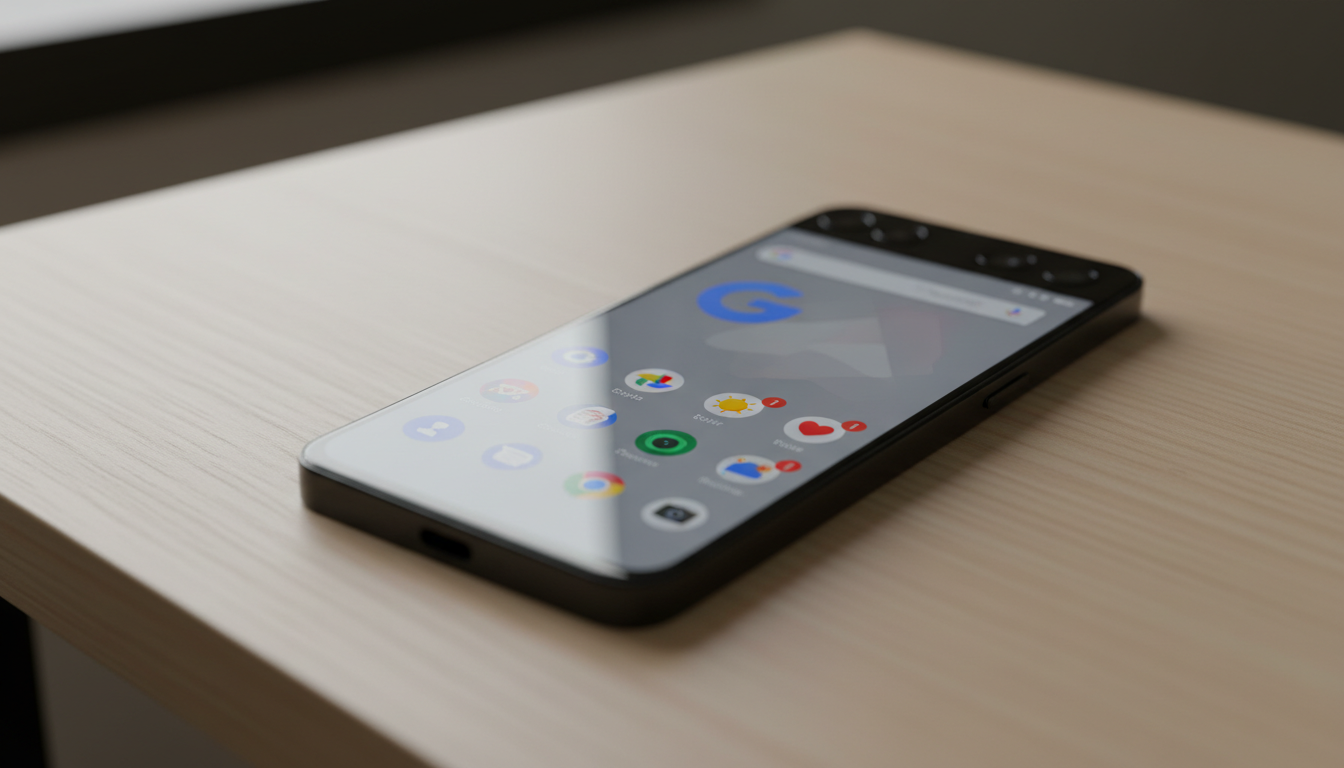
With the release of Android 15, Google introduced features designed to protect our sanity. One of the standout additions is the Notification Cooldown. If a group chat suddenly blows up, your phone won’t vibrate incessantly. Instead, this feature automatically lowers the volume and minimizes alerts for up to a minute when notifications arrive in rapid succession. You can enable this via Settings > Notifications > Notification cooldown.
Another often overlooked gem is the Notification History. We have all accidentally swiped away an alert before reading it. By enabling history in the settings, your Pixel keeps a log of recent and snoozed alerts. This ensures that even if the app notification badges disappear, the information is retrievable. It is a safety net for the hyper-connected user.
Understanding Chat Bubbles vs. Dots
It is crucial to distinguish between dots and bubbles, as they serve different functions. While dots are static indicators on an icon, chat bubbles are floating shortcuts that allow you to reply to conversations from any screen. This feature, popularized by Messenger, is available for various messaging apps on Pixel devices.
To manage this, go to Settings > Notifications > Bubbles. Here, you can allow apps to show bubbles, creating a multitasking-friendly overlay. This is particularly useful for keeping a conversation going while browsing other apps, a staple for Android device tips regarding productivity.
Troubleshooting and Management Guide
Sometimes, technology behaves unpredictably. You might find that a dot persists even after you have checked the app, or conversely, enable notification dots settings are on, but nothing appears. This often happens with apps like Gmail, where unread emails in obscure folders keep the badge active. In other cases, battery-saving modes might suppress background data, preventing the dot from refreshing.
Below is a breakdown of common states and actions to help you verify your notification settings effectively:
| Feature State 📱 | Visual Indicator 🔴 | User Action Required 👆 |
|---|---|---|
| Standard Notification | Colored dot on App Icon | Long-press icon to preview or open app |
| Snoozed Alert | Dot disappears temporarily | Check Notification History to retrieve |
| Bubble Mode | Floating Avatar/Head | Drag to dismiss or tap to expand conversation |
| Cooldown Active | Dot appears, Sound minimized | Wait for notification burst to end |
| System Glitch | Persistent Dot (No message) | Clear App Cache in Storage settings |
Quick Tips for a Cleaner Interface
If you find yourself overwhelmed by visual noise, consider a minimalist approach. You don’t need to disable everything globally. Instead, curate your home screen. Customize notification dots by disabling them for social media but keeping them for work communication tools. Additionally, utilizing the “Do Not Disturb” schedules can automatically suppress these visual cues during your downtime, ensuring your screen doesn’t look like a Christmas tree when you are trying to relax.
- 🔔 Prioritize Communication: Keep dots enabled for Messages, Phone, and Email to ensure urgent contact.
- 🎮 Silence Distractions: Disable dots for games and streaming services to reduce the urge to doom-scroll.
- 🧹 Regular Maintenance: clear your notification shade regularly; sometimes the dot is tied directly to the status bar item.
- 📲 Update Regularly: Ensure your Android UI features are up to date, as bugs in older versions can cause badge errors.
- 🔍 Check Launchers: If you use a third-party launcher instead of the Pixel Launcher, the settings for dots might be located inside the launcher’s specific preferences, not the main system settings.
By taking control of these Android accessibility and interface options, you transform your device from a source of constant interruption into a streamlined tool for efficiency. The notification dot is small, but its impact on your daily digital routine is massive.
Why won’t the notification dot disappear on my Pixel even after I read the message?
This is often caused by a lingering unread item within the app that isn’t immediately visible, such as an archived email or a secondary folder. It can also be a cache issue; try going to Settings > Apps, selecting the app, and clearing the cache to reset the badge.
Can I change the color of the notification dots on Android 15?
On the stock Pixel Launcher, the color of the notification dot is dynamic and determined by the color palette of the app icon itself to maintain aesthetic consistency. You cannot manually change the color without using a third-party launcher that supports advanced customization.
Do notification dots drain the battery on Pixel phones?
The impact on battery life is negligible. Notification dots are simple static visual overlays triggered by the system’s notification listener service. They do not consume significant resources compared to the screen usage or background data required to receive the notification itself.
How do I enable notification snoozing on my Pixel 9?
To enable snoozing, navigate to Settings > Notifications and toggle on ‘Allow notification snoozing.’ Once active, you can tap a small clock icon on a notification in the shade to hide it for a set period, which also temporarily removes the dot.

Jordan has a knack for turning dense whitepapers into compelling stories. Whether he’s testing a new OpenAI release or interviewing industry insiders, his energy jumps off the page—and makes complex tech feel fresh and relevant.

Comments are closed