
Understanding the Mechanics Behind Input/Output Failures
Encountering the message “The request could not be performed because of an I/O device error” effectively halts productivity, preventing the system from reading or writing data to external hardware. In the landscape of 2026, where data velocity is critical, an I/O device error signals a breakdown in communication between the Windows operating system and storage components like SD cards, USB flash drives, or external hard drives. This interruption often leads to system freezes, data inaccessibility, and potential corruption if not addressed with precision.
The root causes generally fall into two distinct categories: logical conflicts or physical breakdowns. Identifying the specific trigger is the first step toward applying effective fixes. While software conflicts often mimic hardware failures, distinguishing between a driver mismatch and actual hardware failure saves significant time during the diagnostic process.
Differentiating Logical and Physical Error Vectors
A systematic approach eliminates guesswork. Logical errors often stem from corrupted file systems, incompatible drivers, or conflicting drive letters. Conversely, physical errors indicate damage to the storage media itself, such as scratched platters or faulty connection ports.
The following table outlines the primary distinctions between these failure modes to guide the troubleshooting strategy:
| Failure Category 🛠️ | Common Symptoms | Typical Root Causes | Initial Action |
|---|---|---|---|
| Logical / Software | Drive detected but inaccessible; “Access Denied”; 0 bytes space. | Outdated drivers, corrupted Master Boot Record (MBR), conflicting drive letters. | Update drivers, run CHKDSK, change drive letter. |
| Physical / Hardware | Clicking sounds; drive not spinning; device not recognized in BIOS. | Damaged cables, port oxidation, head crash, controller board failure. | Swap cables, test on another machine, professional recovery. |
| Power / Connection | Intermittent connection; device disappears and reappears. | Insufficient voltage from USB port, faulty hub, aggressive power saving. | Use rear ports, replace cable, disable USB selective suspend. |
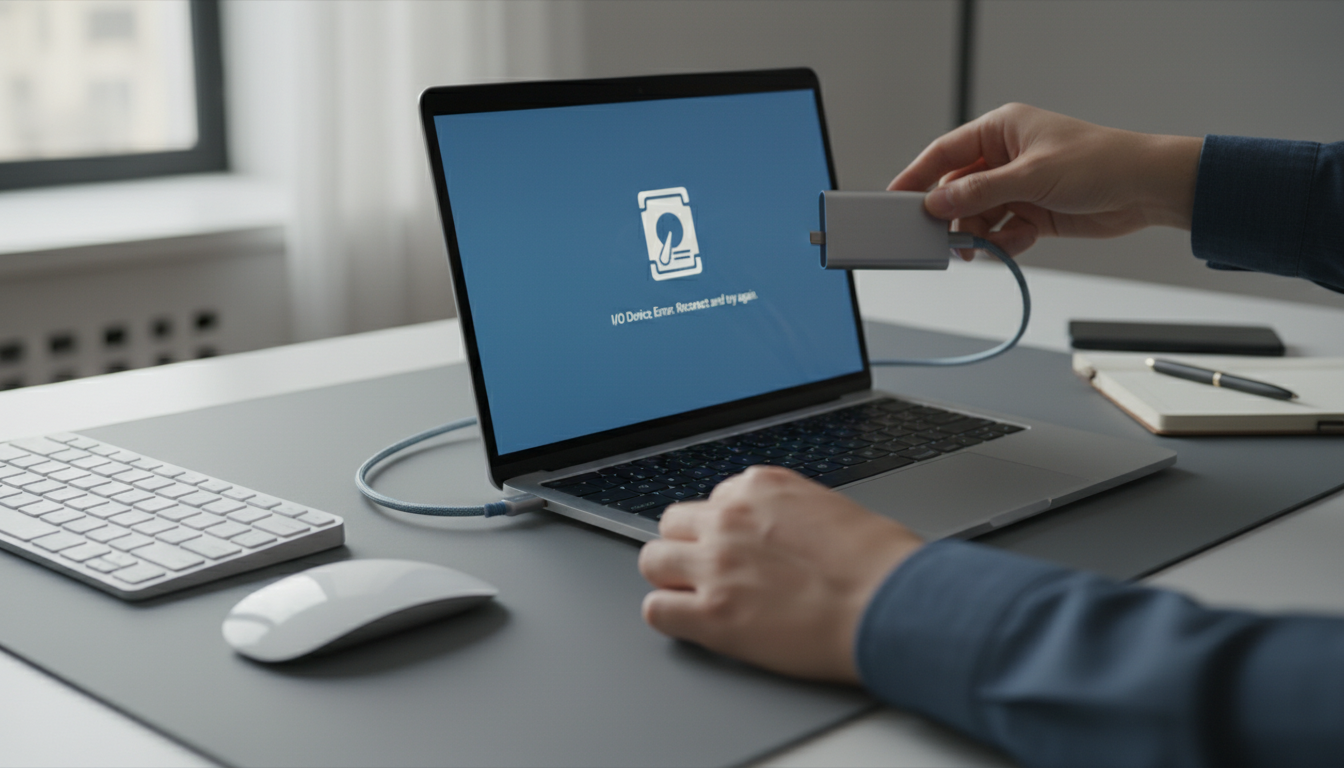
Preliminary Checks: Hardware and Connection Integrity
Before deploying software utilities, physical verification is mandatory. Connection issues are frequently the culprit, often disguised as complex system failures. A loose cable or a port clogged with dust can disrupt the electrical signals required for data transfer. Ensuring a stable link is akin to a simple voice chat setup where checking the microphone jack is the first logical step before debugging the audio software.
1. Cable Verification: Swap the USB or SATA cable with a known working one. Cables are prone to internal fraying that isn’t visible externally.
2. Port Testing: Connect the storage device to a different USB port, preferably one directly attached to the motherboard (rear panel on desktops) to rule out port problems caused by insufficient power delivery from front-panel hubs.
3. Cross-Device Testing: Plug the drive into a different computer. If the error persists, the issue likely resides within the drive itself.
Resolving Driver and Compatibility Conflicts
If the hardware integrity checks out, the focus shifts to the software layer. Device compatibility and driver health are paramount. An outdated or corrupted driver prevents the operating system from translating commands effectively, leading to input/output stoppages.
Updating and Reinstalling Drivers
Navigating the Device Manager provides direct access to the control software. Locate the disk drive in the list; a yellow exclamation mark often indicates a specific driver error. Right-clicking to “Update driver” triggers Windows to search for the latest protocols. If Windows Update fails to find a match, visiting the manufacturer’s website is necessary. For high-performance external SSDs, utilizing specific manufacturer drivers often yields better io drawers performance than generic Windows drivers.
Uninstalling the device driver is another potent tactic. By removing the device from the manager and rebooting, Windows is forced to reinstall the driver stack from scratch, often clearing out corrupted configuration files that caused the deadlock.
Addressing Transfer Mode Incompatibilities
In certain legacy configurations or specific external enclosure chipsets, the transfer mode may default to PIO (Programmed Input/Output) rather than DMA (Direct Memory Access). PIO is significantly slower and CPU-intensive, potentially causing timeouts that manifest as errors.
* Navigate to IDE ATA/ATAPI controllers in Device Manager.
* Inspect the properties of the channel connecting the drive.
* Ensure “Enable DMA” is checked in the advanced settings.
Advanced Command Line Repair Utilities
When the graphical interface fails to resolve the issue, command-line tools offer deeper access to file system structures. Data corruption within the file table can be rectified using the Check Disk utility, a staple in Windows troubleshooting steps.
Executing CHKDSK for File System Repair
The `chkdsk` command scans the drive’s integrity and attempts to repair logical errors and locate bad sectors.
1. Launch Command Prompt with administrative privileges.
2. Input the command `chkdsk X: /f /r` (replacing X with the drive letter of the malfunctioning device).
3. The `/f` parameter fixes errors, while `/r` locates bad sectors and recovers readable information.
This process is critical for understanding case application of repair parameters; using the wrong flags might result in a read-only scan that doesn’t fix the underlying problem. Be aware that running this on a failing drive can sometimes stress it further, so it should be done with caution.
Clean Boot and Conflict Resolution
Software conflicts from third-party applications, such as aggressive antivirus scanners or disk management tools, can lock the drive. Performing a Clean Boot isolates the operating system.
* Step 1: Open `msconfig` via the Run dialog.
* Step 2: Under the Services tab, check “Hide all Microsoft services” and then select “Disable all”.
* Step 3: Disable startup items via Task Manager.
* Step 4: Restart the system and attempt to access the drive.
This method ensures that system resources are not being hijacked by background processes, similar to how chatgpt memory enhancements optimize resource allocation for better processing efficiency.
Formatting and Data Recovery Protocols
If the disk check and driver updates fail to restore access, the file system may be irreparably damaged (RAW format). In this scenario, formatting the drive is often the only way to make it usable again, though this results in data erasure.
Before formatting, data recovery software should be employed if the files are critical. Tools available in 2026 often utilize AI-driven algorithms to scavenge file fragments. However, statistics indicate that severe physical damage often results in partial loss; one might need to calculate 30 percent of 4000 files being unrecoverable in cases of severe magnetic degradation.
Steps to Reformat:
1. Open Disk Management (diskmgmt.msc).
2. Right-click the drive displaying the error.
3. Select “Format” and choose a compatible file system like NTFS or exFAT.
Should the drive fail to format or remain undetected in Disk Management, the likelihood of catastrophic hardware failure is high, necessitating replacement or professional lab recovery services.
What does the I/O device error message signify?
This error indicates that the operating system has attempted to perform an input or output action (reading or writing data) but failed to complete it. This interruption is usually caused by a physical disconnection, driver corruption, or a defect in the storage media itself.
Can I recover data after an I/O error?
Yes, data recovery is often possible if the error is logical (software-based). Using tools like CHKDSK or specialized data recovery software can retrieve files. However, if the drive has suffered physical damage (clicking sounds, motor failure), professional recovery services are required to prevent permanent data loss.
Why does changing the drive letter fix the error?
Sometimes, Windows assigns a drive letter that is already reserved or in conflict with another network mapping. By manually changing the drive letter in Disk Management, you force the system to remount the file system with a fresh path, often resolving the accessibility conflict.
Is it safe to run CHKDSK on a failing drive?
Running CHKDSK puts stress on the drive as it scans every sector. If the drive is physically failing (mechanical issues), this intensive process can accelerate the failure. It is best to clone the drive first if possible, or proceed with caution if you suspect physical damage.

Max doesn’t just talk AI—he builds with it every day. His writing is calm, structured, and deeply strategic, focusing on how LLMs like GPT-5 are transforming product workflows, decision-making, and the future of work.

No responses yet