
Why is my iPad so slow: common causes on iPadOS 26
Maya Chen, a product manager at a small AI startup, noticed her iPad lagging during a client demo. The same device handled prototypes fine a year earlier. That change came from a mix of small issues piling up. Understanding the main causes helps you pick the right fix instead of guessing.
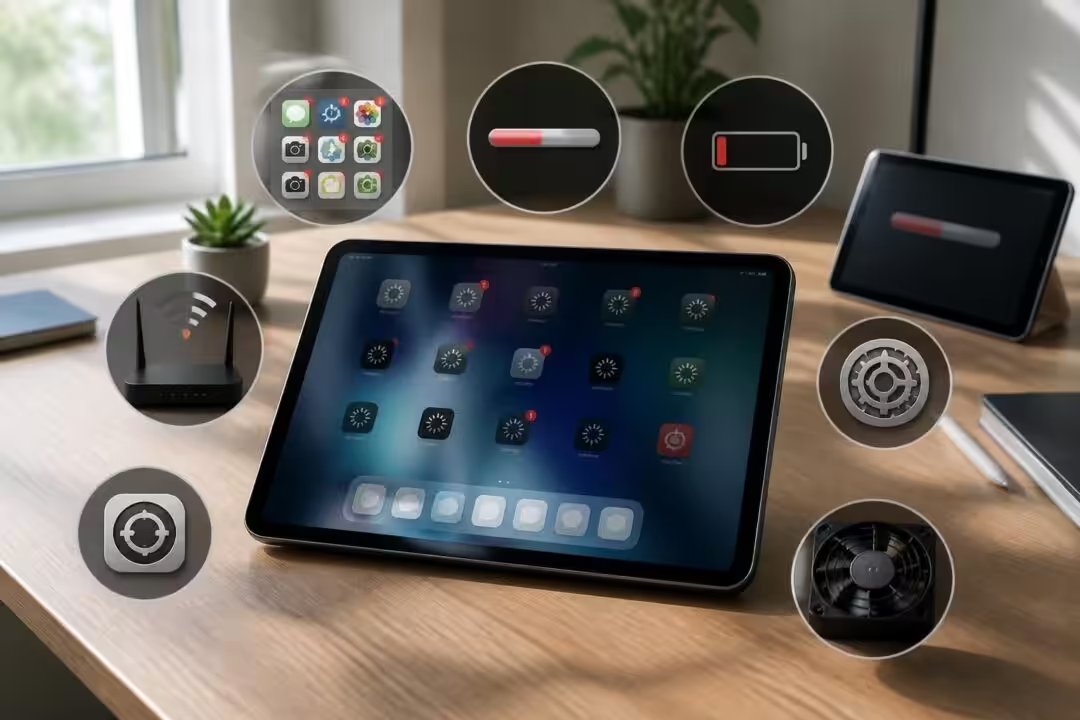
First, software age matters. Over time, apps get feature updates that need more memory and CPU. If your iPad model is several years old, the hardware may struggle with new app demands. This creates stutters when switching apps or scrolling complex pages. Performance drops often appear after a major update too. That update can add background tasks or visual effects that older hardware struggles to render.
Second, storage pressure creates slow behavior. iPadOS uses free storage as temporary swap. When storage is nearly full, the system cannot allocate that swap efficiently. Apps reload more often. Disk-backed caches fail to speed up repeated tasks. If you see frequent app refreshes or long load times, low free storage is a likely cause.
Third, background activity can hog resources. Many apps run background tasks such as content sync, location checks, or scheduled updates. These tasks still use CPU and network time. When many apps act in the background, the usable resources for foreground tasks shrink. This leads to lag during simple interactions like typing or opening messages.
Fourth, thermal throttling affects performance. If the iPad runs hot from direct sun, heavy gaming, or prolonged video calls, the system reduces CPU speed to protect components. Performance drops appear as choppy video, slow app launches, and lag in animations. Heat also shortens battery life and can increase app crashes.
Fifth, battery health can force performance limits. iPadOS can reduce peak CPU performance to avoid sudden shutdowns on older batteries. If battery health has degraded, the system may cap processing power. You can check battery status under Settings > Battery and confirm whether battery condition is a factor.
Sixth, network issues mimic device slowness. When a web app waits on the network, it feels like the iPad is slow. DNS delays, crowded Wi‑Fi, or ISP throttling turn simple web pages into long-load tasks. Verify whether other devices on the same network show similar delays before assuming device failure.
Seventh, corrupted system files or app-level bugs can create persistent lag. A single misbehaving app can crash frequently or hog resources. This is often the case after an update that did not finish cleanly, or when a specific app has a memory leak. Identifying the misbehaving app helps isolate the problem quickly.
Each of these causes points to a different fix. Storage issues need cleanup. Background tasks require toggles. Thermal or battery problems demand cooling or hardware service. In the next section, quick checks will help you find which cause matches your symptoms.
Key insight: a slow iPad rarely stems from one cause; it results from multiple small problems that add up.
Quick checks to run when your iPad is slow (storage, updates, Wi‑Fi)
Before applying heavy fixes, run a few quick checks that reveal the likely cause. These checks are low risk and take a few minutes. They guide the next steps so you do not waste time troubleshooting the wrong area.
Check free storage first. Go to Settings > General > iPad Storage. The page lists space used by apps and large media. If free space dips below 5–10%, start deleting or offloading files. Large video files and app caches usually consume the most room.
Next, verify iPadOS and app updates. Go to Settings > General > Software Update to see system updates. Open the App Store and check Updates at the top to see app updates. Updates can fix performance regressions or app bugs related to speed.
Look for a pattern in slow behavior. Does lag happen when typing, when using the web, or while gaming? A typing lag often points to background CPU load or keyboard extension issues. Web slowness points to network or browser cache problems. Gaming lag hints at thermal throttling or GPU limits.
Check the Wi‑Fi connection. Open Settings > Wi‑Fi and tap the network info icon. Confirm you are on the correct band (2.4 GHz vs 5 GHz). Run a quick speed test with Speedtest by Ookla or Fast.com. If other devices perform fine, your iPad probably needs local fixes.
Test battery and heat. Open Settings > Battery and check recent activity. If an app shows heavy background use, force quit it. Touch the back of the iPad; if it feels hot, set it down to cool for a few minutes and try again. Overheating often resolves after cooling and quitting background tasks.
Try a simple restart. Hold the top button and slide to power off, or use the restart command for your model. Restarting clears transient memory issues and can resolve many temporary performance drops. If a restart helps, the issue may be a rogue background process.
If you find no clear culprit, run a short checklist:
- 🔋 Battery check: Settings > Battery to view health and recent app usage.
- 🧹 Storage check: Settings > General > iPad Storage for large files.
- 📡 Network test: Run Speedtest and compare with other devices.
- ♻️ Restart: Reboot and watch for immediate improvement.
- 📱 Spot check app: Close suspect apps and test again.
These steps expose whether the problem is device-local or network-related. Maya used this checklist before a client meeting. She freed 12 GB of space and rebooted. The demo ran smoothly after that quick effort.
Key insight: A short checklist often finds the problem, saving you time and preventing unnecessary fixes.
Seven practical fixes to speed up a slow iPad in 2026
This section lays out seven focused fixes tied to common causes. Each fix includes how-to steps, when to use it, and a concrete example from the field. Use the fix that matches the symptom you identified in the quick checks.
Fix 1 — Restart and force-quit rogue apps
Why: Temporary glitches and runaway apps consume memory and CPU. Restarting clears those processes. How: Press and hold the top button and use the power slider. For models without a Home button, swipe up and pause to access the app switcher, then swipe up on app cards to quit.
Example: Maya once had a video conferencing app stuck in the background. A restart freed resources and removed audio lag during her demo.
Fix 2 — Free up storage space
Why: Low free storage blocks swap and cache functions. How: Delete large videos, offload unused apps via Settings > General > iPad Storage, and clear message attachments. Remove offline media in Netflix, Spotify, and similar apps.
Example: Clearing a single 4 GB movie reduced app reloads and sped up launching heavy apps.
Fix 3 — Disable excessive background activity
Why: Background tasks use CPU and network. How: Turn off Background App Refresh under Settings > General. Disable push email for nonessential accounts. Turn off location access for apps that do not need it at all times.
Example: Turning off background refresh for a news app reduced CPU spikes during idle time.
Fix 4 — Reduce motion and visual effects
Why: Animations require GPU time and memory. How: Open Settings > Accessibility > Motion and enable Reduce Motion. Then enable Reduce Transparency under Display & Text Size.
Example: An older iPad model regained smoother scrolling and faster app switching after these toggles.
Fix 5 — Update iPadOS and apps
Why: Updates fix performance bugs and optimize background processes. How: Visit Settings > General > Software Update and update apps in the App Store. If an update makes things worse, consider rolling back or contacting the app developer.
Example: A 2026 iPadOS minor release fixed a memory leak in the system web view used by many apps.
Fix 6 — Reset all settings
Why: Misconfigured settings can conflict and slow down networking or app behavior. How: Settings > General > Transfer or Reset iPad > Reset > Reset All Settings. This keeps personal data but restores system settings.
Example: After a problematic update, resetting settings restored normal Wi‑Fi performance without deleting photos.
Fix 7 — Advanced repair tools for deeper system issues
Why: Corrupted system files sometimes resist simple fixes. How: Use a reputable repair tool to restore system integrity without data loss. Follow vendor instructions and back up before major operations.
Example: A colleague used a repair tool to fix frequent freezes after an interrupted update. The tool repaired system files and preserved app data.
| 🔧 Fix | ⚠️ When to use | ✅ Expected result |
|---|---|---|
| 🔁 Restart | When apps freeze or CPU spikes | Short-term relief and cleared memory |
| 🧹 Free storage | Free space <10% | Fewer app reloads, faster launches |
| 📵 Disable background | High idle CPU or network use | Smoother foreground performance |
| 🎛️ Reduce motion | Older device or GPU lag | Smoother UI rendering |
| ⚙️ Reset settings | Persistent network or config bugs | Solves misconfiguration without data loss |
Apply fixes in order. Start with the least intrusive steps. If those do not work, move to a reset or repair step after you back up your data.
Key insight: Small fixes often solve big slowdowns; reserve advanced repairs for persistent issues.
Advanced troubleshooting: system repairs, performance tests and ReiBoot
If basic fixes fail, deeper diagnostics and targeted system repairs become necessary. This section walks through diagnostic tools, benchmark checks, and a non-destructive repair method used in practice.
Start with performance tests. Run a CPU and memory monitor to see which processes use resources. For non-jailbroken devices, use third-party apps that report CPU load and memory use. Run Geekbench 5 for CPU results and compare scores for your model online. For network checks, use Speedtest by Ookla and Fast.com to compare results across devices on the same network.
Test touch and display responsiveness. Open Settings > Privacy > Analytics > Diagnostics to capture logs if touch events miss. Use simple touch-test apps to ensure digitizer responsiveness. If touch fails in isolated zones, it may be a hardware issue rather than software.
Next, collect a system diagnostic log. Go to Settings > Privacy > Analytics and send logs to a trusted technician if needed. These logs reveal kernel panics, repeated app crashes, and thermal events. They help a technician decide whether a software repair can fix the issue or whether repair shop service is required.
When system files look corrupted or updates failed midway, run a targeted repair. Many tools on the market perform a standard repair that reinstalls iPadOS without erasing user data. Follow these precautions:
- 💾 Back up first: Use iCloud or a wired backup to a computer.
- 🛑 Verify the tool: Use a recognized vendor with clear documentation.
- 🔌 Keep the device charged and connected during the repair.
One non-destructive option many testers use is a standard repair mode that reinstalls the firmware and repairs system partitions. The process typically downloads compatible firmware, applies it, and reboots the iPad into a stable state. After repair, settings and apps remain intact in most cases.
Case study: Maya’s iPad froze after a partial system update. Safe restart and storage clearing did not help. A standard repair tool restored the system files without erasing data. The device booted normally, and performance returned to expected levels during conference calls.
When repair tools fail to restore responsiveness, the remaining options are a full factory restore or hardware service. A factory restore erases all user data. Perform it only after a complete backup. Hardware issues include failing flash storage or damaged thermal management. In those cases, a certified repair center is the safest route.
Finally, log the steps you tried and the results. If you contact support, provide the log, your iPad model, iPadOS version, and a timeline of events. This information speeds up diagnosis and avoids repeated basic suggestions from support channels.
Key insight: Use diagnostics and standard repair tools only after backups. They can fix system-level issues without data loss when used correctly.
Network, browser and app issues: diagnosing slow Wi‑Fi and browsing on iPad
Network problems often masquerade as device performance issues. This section explains how to diagnose DNS, tab overload, browser caches, and site-specific issues on the iPad. It closes with practical steps to restore fast browsing.
First, rule out the network. Compare the iPad’s speed test to another device on the same network. If both devices are slow, the ISP, router, or congestion is likely the cause. Reboot the router and move closer to the access point to rule out range problems.
DNS choice affects perceived speed. Slow DNS resolution delays page loads even when raw bandwidth is fine. Change DNS servers to a fast public option such as Cloudflare (1.1.1.1) or Google (8.8.8.8) under Settings > Wi‑Fi > (i) > DNS. This change often speeds up the initial connection to websites.
Browser issues also matter. Too many open tabs increase memory pressure. Close unnecessary tabs and clear browsing data. For Safari, go to Settings > Safari > Clear History and Website Data. For Chrome, use its in-app history clearing. An outdated browser version may also slow rendering; update the browser through the App Store.
Some sites have heavy client-side code that performs poorly on mobile devices. Try Request Desktop Website in Safari via the AA menu for sites that misbehave, or switch browsers to see if rendering differs. Some web apps use large service workers or caches that bloat storage and CPU usage.
DNS caching problems on the router can be resolved by rebooting the router or changing its firmware if it is old. Mesh networks benefit from firmware updates and correct channel assignment to reduce interference. If automated QoS settings throttle devices, disable or tune them for your critical device.
Use a short diagnostic checklist:
- 📶 Run Speedtest on iPad and another device to compare.
- 🌐 Change DNS to 1.1.1.1 or 8.8.8.8 and retest page load times.
- 🗑️ Clear browser cache and close tabs to free memory.
- 🔁 Reboot router and iPad to clear network stacks.
- 🧭 Test the site in another browser or on desktop.
Finally, monitor whether the issue appears at specific times. Peak-hour ISP congestion appears in the evenings. If that matches your slow period, contact your ISP or schedule heavy tasks for off-peak hours.
Maya found that her slow web apps stemmed from a DNS provider with intermittent delays. Switching to Cloudflare and clearing browser cache removed most of her perceived slowness.
Key insight: Network and browser problems are common culprits; simple DNS and cache changes often restore fast browsing.

I’m a Brooklyn tech journalist who spent a decade covering software, cloud and developer tooling. I started this magazine in 2023 to cover generative AI without the hype or the cynicism: testing tools on my own subscriptions and citing primary sources.