
What “Queued” in Gmail Means (and What Gmail Is Doing Behind the Scenes)
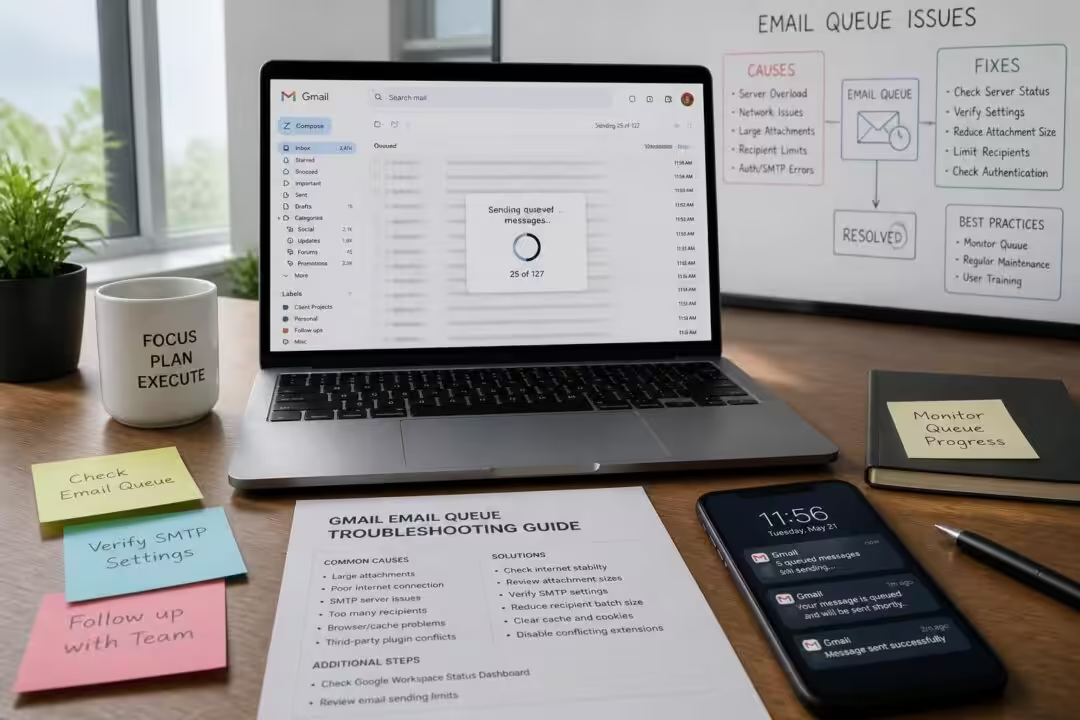
Seeing “Queued” in Gmail means the message is sitting in a waiting state instead of leaving your device for Google’s mail servers. Think of it as a local “to-send” job that Gmail can’t finish yet. 📬 The email is neither a draft nor fully sent; it is an outgoing item that Gmail intends to transmit once the blocking condition clears.
This status shows up most often on mobile, where networks change and background limits are common. A typical pattern: an email is composed on a subway platform, “Send” is tapped, the phone flips between Wi‑Fi and cellular, and Gmail parks the message in Outbox with Queued. The same logic can happen on desktop, though it is less common unless Offline Mail is enabled in browser settings.
Under the hood, Gmail behaves like a cautious dispatcher. It tries to upload the message body, attachments, headers, and recipient metadata. If any part fails, Gmail avoids partial delivery and retries later. That is why queued mail often eventually sends once connectivity stabilizes or server load drops. ✅ Still, “eventually” is a bad plan for time-sensitive notes, investor updates, incident reports, or legal threads.
A useful mental model is to separate “local conditions” from “server conditions.” Local conditions include weak internet, low device storage, corrupted cache, battery saver restrictions, or an outdated app build. Server conditions include Gmail throttling because of unusual volume, transient backend errors, or security checks that slow transmission. The fix depends on which side is failing.
To keep this grounded, consider a small fictional product team at a US startup, North Pier Analytics. Their on-call engineer sends an incident timeline to a customer. The message includes screenshots and a log export. Gmail marks it Queued for 40 minutes. What happened? The attachment bundle crossed the 25 MB cap, so Gmail could not finish the upload and never completed the send. The message did not “fail loudly.” It just waited.
The status can also hide “soft failures.” If the recipient address is malformed, if the network blocks SMTP traffic in a captive portal, or if Gmail flags content as suspicious, the message can remain stuck until you edit or remove the trigger. ⚠️ That is why queued mail can be harmless or can be a sign that something needs human action.
Before touching anything destructive, treat your composed email like data you care about. If the message is important, open it, copy the text into Notes or a doc, and save any recipient list. This avoids the worst-case scenario where troubleshooting steps clear local state and the message content is lost. The next section gets practical: a quick triage to identify the dominant cause in minutes, not hours.
Why Emails Get Stuck as “Queued” in Gmail: The Real Root Causes
Queued mail is usually Gmail protecting delivery quality. Instead of sending a broken message, it waits. The challenge is that many different faults look the same in the UI. Fixing it fast means narrowing the cause with a short checklist rather than trying random toggles.
The most common driver is unstable connectivity. 📶 Gmail needs a stable path long enough to upload the message and confirm receipt. Switching between Wi‑Fi and cellular can interrupt that process. So can “Wi‑Fi with no internet,” which happens in airports, hotels, and coffee shops with captive portals. You look connected, but Gmail cannot reach Google’s servers until the portal login is completed.
Next is attachment size. Gmail’s hard limit remains 25 MB per message for direct attachments. If the total payload goes over that, Gmail may try to move the file to Drive and insert a link. On mobile networks, that conversion step can stall. Large PDFs, screen recordings, and design exports are frequent culprits. A queued message with a progress indicator that never completes often points here.
Sending volume is another source. If an account sends a burst of messages—think job applications, PR outreach, or a founder emailing a large advisory group—Gmail may throttle and place messages in a queue to protect infrastructure and curb abuse. For personal Gmail, the daily cap is far lower than Google Workspace domains configured for higher throughput. When throttling kicks in, queued mail can appear even with strong internet.
There are also Gmail-side delays. Google’s backend is resilient, but spikes happen. Product launches, regional outages, or partial service degradation can slow message processing. The pragmatic move is to check the Google Workspace Status Dashboard when queueing appears across multiple devices. 🟡 If Gmail is degraded, local tweaks will not help much until service stabilizes.
Security and spam screening is more subtle. Gmail can slow or hold outbound messages that look like phishing: too many links, URL shorteners without context, misleading subjects, heavy use of caps, or patterns that resemble automation. Even legitimate outreach can trip these filters, especially from new accounts or new domains. The result can be queueing or slow sends that feel random.
Mobile adds two extra pitfalls: low device storage and background restrictions. When a phone is almost full, apps fail to write temporary data. Gmail needs scratch space to prepare attachments, encrypt local storage, and sync state. Similarly, Android battery optimizations can block background network use, leaving Gmail unable to finish sending unless the app is foregrounded.
Finally, time and sync drift can break assumptions. If a device’s date/time is wrong after travel, VPN use, or a dead battery, Gmail sync can act weird. Messages may sit queued because tokens and timestamps do not align with server expectations. This is more common than it sounds in enterprise fleets where devices are managed and time settings get altered by policy profiles.
To make diagnosis faster, here is a compact mapping of symptoms to likely causes. It is not perfect, but it reduces guesswork.
| Symptom 🧭 | Most likely cause 🔎 | Fastest first check ⚡ |
|---|---|---|
| Queued right after leaving Wi‑Fi 📶 | Network handoff / captive portal | Open a webpage, toggle Airplane Mode |
| Queued with big file attached 📎 | Over 25 MB or upload stalled | Remove attachment, send Drive link |
| Many emails queued during outreach 📤 | Rate limits / throttling | Pause, schedule, reduce batch size |
| Queueing on one phone only 📱 | Background data or storage | Enable background data, free storage |
| Queueing across devices 🧩 | Gmail server issue or account restriction | Check Workspace Status Dashboard |
Once you know which bucket you are in, the fixes become mechanical. The next section walks through hands-on steps that clear most queues without wiping your account or escalating to “remove and re-add Gmail.”
10 Tested Fixes for “Queued” Emails in Gmail (Android, iPhone, and Web)
Start with the least destructive steps. The goal is to get the message moving while preserving what you wrote. If the email is critical, copy the body text elsewhere first. 🧷 That single habit saves time when troubleshooting gets messy.
1) Toggle Gmail sync to force a clean handshake 🔄
On Android, Gmail can appear “stuck” because the sync channel is hung. Turning sync off and back on forces a re-auth and state refresh without deleting messages.
Android: Settings → Accounts → Google → select account → Account sync → toggle Gmail off, wait 10 seconds, toggle on.
iPhone (Mail integration): Settings → Mail → Accounts → Gmail → toggle Mail off, wait, toggle on. If using the Gmail app only, continue with app reinstall steps below.
2) Clear cache (Android) or reinstall (iPhone) 🧹
Corrupted cached data can block uploads and status updates. Clearing cache is safe; it does not remove your mailbox. Clearing storage/data is more aggressive and should be a last step.
Android: Settings → Apps → Gmail → Storage → Clear cache.
iPhone: delete Gmail app and reinstall. iOS does not expose a direct “clear cache” control for Gmail.
3) Fix the connection first (this solves most cases) 📶
If the email queued during a weak signal, Gmail is waiting for a stable route. Force a reset: toggle Airplane Mode on/off, then test a normal webpage. If on Wi‑Fi, restart the router. If on cellular, confirm Gmail has permission to use mobile data.
Queueing that clears within 30 seconds of connection stabilization was not “a Gmail bug.” It was a transport issue. That matters because the prevention plan becomes obvious.
4) Enable Background Data / Background App Refresh ⚙️
On Android, background data can be blocked by Data Saver or battery rules. Gmail then cannot finish sending unless open on screen.
Android: Settings → Apps → Gmail → Mobile data & Wi‑Fi → enable Background data. If available, enable Unrestricted data usage for faster sends.
iPhone: Settings → Gmail → enable Background App Refresh.
5) Turn off Gmail Offline Mode on the web 📴
If Gmail offline is enabled in a browser, outgoing mail can queue until the browser syncs. That is helpful on planes, but confusing in daily life.
Gmail (web) → gear icon → See all settings → Offline → uncheck Enable offline mail → Save Changes → refresh.
6) Use Schedule Send to avoid peak send windows ⏰
Scheduling does not “fix” a broken queue, but it helps when throttling or transient load is the cause. It also reduces the chance of sending during a bad network moment.
Compose → click arrow next to Send → Schedule send → pick a time. Teams that do outreach often schedule batches across hours to avoid sudden spikes that trigger filters.
7) Verify device date/time settings 🕒
Wrong time breaks sync assumptions and token validation. Enable automatic time and timezone.
Android: Settings → System → Date & time → enable Set time automatically and Set time zone automatically, then reboot.
iPhone: Settings → General → Date & Time → Set Automatically.
8) Update Gmail (and the OS) ⬆️
Queued bugs show up in edge cases: certain attachments, certain OEM Android builds, certain battery modes. Updates often patch those. Check Play Store/App Store, then restart the phone.
9) Deal with the 25 MB attachment limit the right way 📎
If the email has large files, remove the attachment and use a cloud link. Compression helps, but it is not always enough for videos and design exports.
- 📁 Compress using 7‑Zip/WinRAR, or export images at lower resolution.
- ☁️ Upload to Google Drive and share a link with correct permissions.
- 🔗 Use file transfer links for multi‑GB payloads, then reference them clearly in the email.
10) Remove spam triggers from the message content 🛡️
If Gmail is hesitant because the content looks risky, edit it. Avoid all-caps subject lines, aggressive punctuation, misleading “Re:” prefixes, and unexplained shortened URLs. Replace with plain phrasing and visible links. This is not about gaming Gmail; it is about writing like a human who expects scrutiny.
These fixes handle the majority of “Queued” states. When they do not, the pattern usually involves bulk sending behavior or account-level throttling. That is where operational habits and tooling matter, which is the focus of the next section.
Preventing Gmail Queueing in High-Volume Use: Limits, Throttling, and Deliverability Hygiene
Queueing becomes common when Gmail thinks sending patterns look automated or risky. This shows up for founders doing fundraising outreach, recruiters emailing candidates, journalists coordinating sources, and product teams running beta invites. The message is simple: Gmail prefers steady behavior over bursts. 🚦
Gmail also enforces practical sending limits. Many people only learn this when they hit it. A personal Gmail account can get constrained faster than a tuned Google Workspace tenant. Even when under the hard daily cap, short-term spikes can trigger temporary throttles that look like queued mail. If 80 messages go out in 10 minutes, Gmail may slow down the rest to protect abuse controls.
That is why prevention starts with operational changes:
- 📶 Send critical mail only on reliable connectivity, not during network handoffs.
- 📎 Keep attachments under 25 MB and prefer Drive links for anything large.
- 🧯 Avoid sending 50+ emails at once from a single inbox; split across time blocks.
- 🧠 Keep copy “boring”: clear subject lines, minimal tracking links, no gimmicks.
- 📱 Keep the phone healthy: free storage, background data enabled, app updated.
Here is how these habits play out in a realistic workflow. North Pier Analytics has a small sales team using Gmail for outbound trials. Early on, a rep exports a list and blasts 120 emails in one sitting. Half of them show as queued, some arrive late, and a few land in spam. The team then changes approach: 30 emails per hour, plain-text formatting, and a Drive link for the deck. Queueing drops because the pattern looks normal and the payload is small.
Deliverability hygiene also matters for teams using custom domains. If a domain has weak authentication posture, Gmail may scrutinize outbound mail more aggressively. While queueing is not the usual symptom of missing SPF/DKIM/DMARC, authentication problems do correlate with higher friction during sending and more spam filtering. In practice, the same teams that ignore authentication also tend to send link-heavy outreach, which is a second risk factor.
For engineers and product leads, it helps to treat Gmail as a rate-limited API with policy checks. You do not get infinite throughput from a single identity. If the work requires consistent high-volume messaging, the fix is not “clear cache every morning.” The fix is to build a sending plan that respects constraints.
Scheduling is one of the simplest tactics. Spreading messages across business hours reduces spikes and avoids times when Gmail infrastructure is under stress. It also yields better replies, which in turn improves sender reputation signals. Replies are a strong “this is real conversation” indicator, which reduces the likelihood of future throttling.
Another prevention tactic is to rotate responsibility across accounts for legitimate teams. If five sales reps each send 80 messages per day, that looks normal. If one shared inbox sends 400, it looks automated even if it is not. Queueing then becomes Gmail’s way of saying “slow down.”
Finally, treat queued mail as a monitoring signal. If queueing increases week over week, something changed: a new template, a new attachment workflow, an update that altered background permissions, or a new campaign cadence. Teams that track this as an operational metric fix it faster than teams that assume it is random.
The next section looks at tooling that enforces safer sending patterns automatically, which is where many teams end up once Gmail becomes part of a repeatable business process.
Using Automation to Reduce “Queued” in Gmail: SmartReach.io Patterns That Keep Mail Moving
When Gmail queueing is tied to volume, prevention becomes a systems problem. Humans are bad at pacing. Tools are good at pacing. The value of an outreach platform is not flash; it is that it enforces sending behavior Gmail accepts while giving you visibility when things fail. 📈
SmartReach.io is one example of a sales engagement platform that integrates with Gmail and focuses on deliverability controls. The relevant idea is not the brand name; it is the mechanics: warmup, sequence pacing, validation, and rotation.
Email warmup and reputation building 🔥
If an inbox suddenly starts sending higher volumes, Gmail’s abuse systems notice. Warmup gradually increases daily sending volume over weeks, making the change look organic. A typical warmup starts around 10–15 emails per day and ramps over 2–4 weeks. During warmup, systems simulate engagement signals such as opens and replies, which helps the sender identity look like a real communicator.
For a team launching a new domain, this matters. A new domain plus a burst of outbound mail is a classic spam pattern. Warmup reduces the chance that messages queue or route into spam because the system sees a gradual ramp rather than a cliff.
Sequenced follow-ups that stop when someone replies 🧵
One of the fastest ways to trigger throttling is unnecessary repetition. Smart sequences send follow-ups only when there is no reply, which reduces total send count and avoids hammering the same recipient. A simple cadence might be: Day 1 initial message, Day 3 follow-up, Day 7 final note. This keeps each mailbox well under typical thresholds and reduces the chance of queued states caused by short-term spikes.
Validation and spam testing before sending ✅
Queued mail is sometimes downstream of bad lists. Invalid addresses create bounces, and high bounce rates harm reputation. Validation checks recipient addresses before sending, reducing avoidable bounces. Spam testing scans content for risky patterns—too many links, suspicious phrasing, misleading subjects—and flags issues before Gmail’s filters do.
In a newsroom scenario, imagine a journalist sending a tip request to a sourced list. If half the list is stale, bounces spike and future messages start getting delayed or filtered. Pre-send validation avoids that cascade.
Inbox rotation to avoid single-account throttling 🔁
Rotation distributes sending across multiple accounts. Instead of one inbox sending 300 emails, five inboxes send 60 each. That looks more like normal human behavior. It also reduces the chance that any single account is temporarily throttled and begins queueing messages.
This is not about evading policy. It is about matching the architecture of a real team: multiple humans, multiple inboxes, and predictable cadence.
Analytics that surface queueing as an operational issue 📊
The practical win is visibility. If a campaign starts to queue messages, dashboards can show where and when it happens: specific inboxes, specific templates, or specific time windows. That makes remediation concrete. Instead of “Gmail is broken,” you get “Queueing started after adding a shortened URL” or “Queueing spikes at 9:00 AM when all sequences fire.”
A grounded takeaway: queued mail is rarely solved by one magic switch. For individuals, it is usually connectivity, background restrictions, or attachments. For teams, it is cadence, reputation, and list hygiene. Once the workflow becomes repeatable, automation that enforces pacing and checks content becomes the simplest way to keep Gmail out of the queue state. 🧠

I’m a Brooklyn tech journalist who spent a decade covering software, cloud and developer tooling. I started this magazine in 2023 to cover generative AI without the hype or the cynicism: testing tools on my own subscriptions and citing primary sources.