Tech
sim failure explained: common causes and quick fixes in 2025
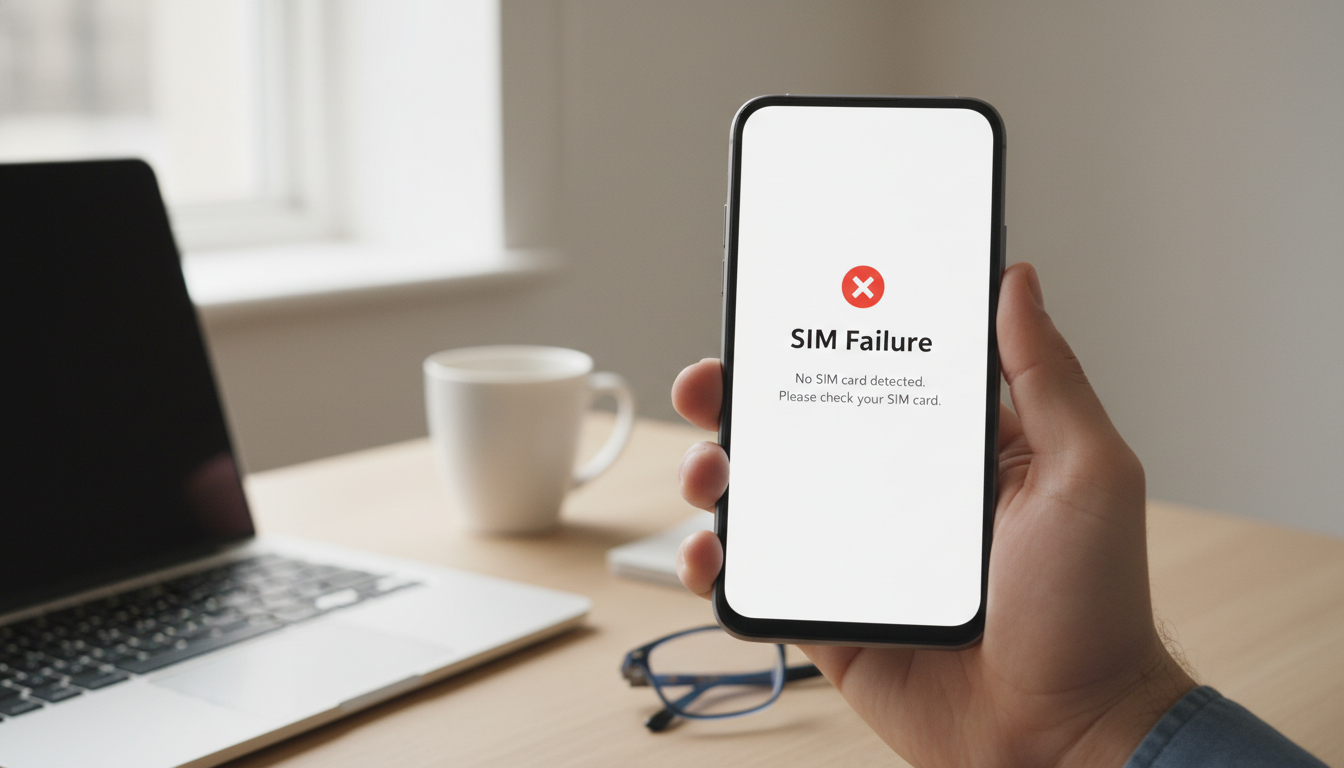
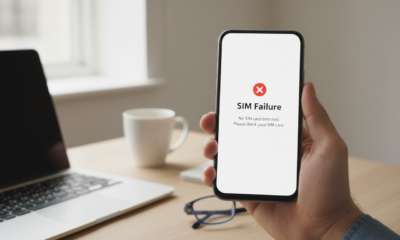
Your iPhone is your lifeline to the digital world, handling everything from urgent emails to streaming the latest podcast. So, seeing a “SIM Failure” message pop up can feel like hitting a brick wall. Suddenly, you can’t make calls, texts won’t send, and mobile connectivity vanishes. It is a frustrating interruption, but before you rush to a repair shop or panic about buying a new device, take a breath. In most cases, this is a temporary communication breakdown between your device and the network that can be resolved right from your couch.
Decoding the “SIM Failure” Alert on iPhone
When your screen displays “SIM Failure,” “Invalid SIM,” or “No SIM,” your iPhone is essentially telling you it cannot establish a handshake with the carrier network. The Subscriber Identity Module (SIM) is the key that validates your subscription and grants access to cellular towers. Whether you are using a traditional physical card or a modern eSIM in 2025, the principle remains the same: without that validation, the device acts as if it is offline.
This error doesn’t necessarily mean the hardware is broken. It is often a logic error where the software path is blocked. Think of it less like a broken engine and more like a transactional glitch, similar to finding a card purchase error solution where the authorization just didn’t go through properly. The iPhone expects a valid carrier signature, and something—be it dust, software bugs, or a displaced tray—is interrupting that signal.
Why Your Connection Just Dropped Dead
Understanding common causes is half the battle. This issue rarely happens without a trigger, even if that trigger isn’t immediately obvious. It could be as simple as dropping your phone, which slightly dislodges the card, or as complex as a corrupted system file after an overnight update. Diagnosing this requires looking at the problem systematically, much like identifying task failure root causes in complex project management scenarios.
- 📱 Physical Displacement: The SIM tray might be loose, bent, or not fully inserted, preventing the contact points from touching the chip.
- 🕸️ Dust and Debris: Even microscopic dust particles can insulate the gold contacts on the SIM, blocking the electrical signal.
- 💾 Outdated Software: Running an old iOS version often leads to compatibility issues with newer carrier protocols.
- 📶 Carrier Settings Mismatch: Carriers frequently update their network parameters; if your phone misses these updates, it loses the ability to connect.
- 💧 Hardware Damage: Exposure to water or high humidity can corrode internal components over time.
To help you distinguish between the types of failures, here is a breakdown of symptoms based on the SIM type:
| Feature | Physical SIM Failure 🛑 | eSIM Failure 📵 |
|---|---|---|
| Primary Symptom | “No SIM” or “Invalid SIM” usually due to tray movement. | “No Service” or stuck on “Searching” often due to software profiles. |
| Physical Check | Requires ejecting the tray and cleaning the card. | No physical check possible; requires settings verification. |
| Common Fix | Re-seating the card or cleaning contacts. | Deleting and re-adding the eSIM plan. |
| Durability | Prone to scratches and physical wear. | Immune to physical wear but sensitive to OS bugs. |
Immediate Quick Fixes for SIM Card Errors
Before diving into complex settings, start with the basics. These quick fixes resolve the vast majority of connectivity hiccups by forcing the phone to re-establish its network handshake. It is surprising how often a simple “off and on” approach works, acting as a refresh button for the cellular modem.

The Airplane Mode Toggle
This is the fastest way to reset your iPhone’s radios without a full reboot. By toggling Airplane Mode, you cut power to the cellular antenna and then restore it, forcing the device to search for the nearest tower again. Open the Control Center, tap the airplane icon to turn it orange ✈️, wait about 30 seconds, and tap it off. This brief pause often clears temporary network glitches similar to how a Claude server error fix often just requires a connection refresh.
Re-seat and Clean the SIM Card
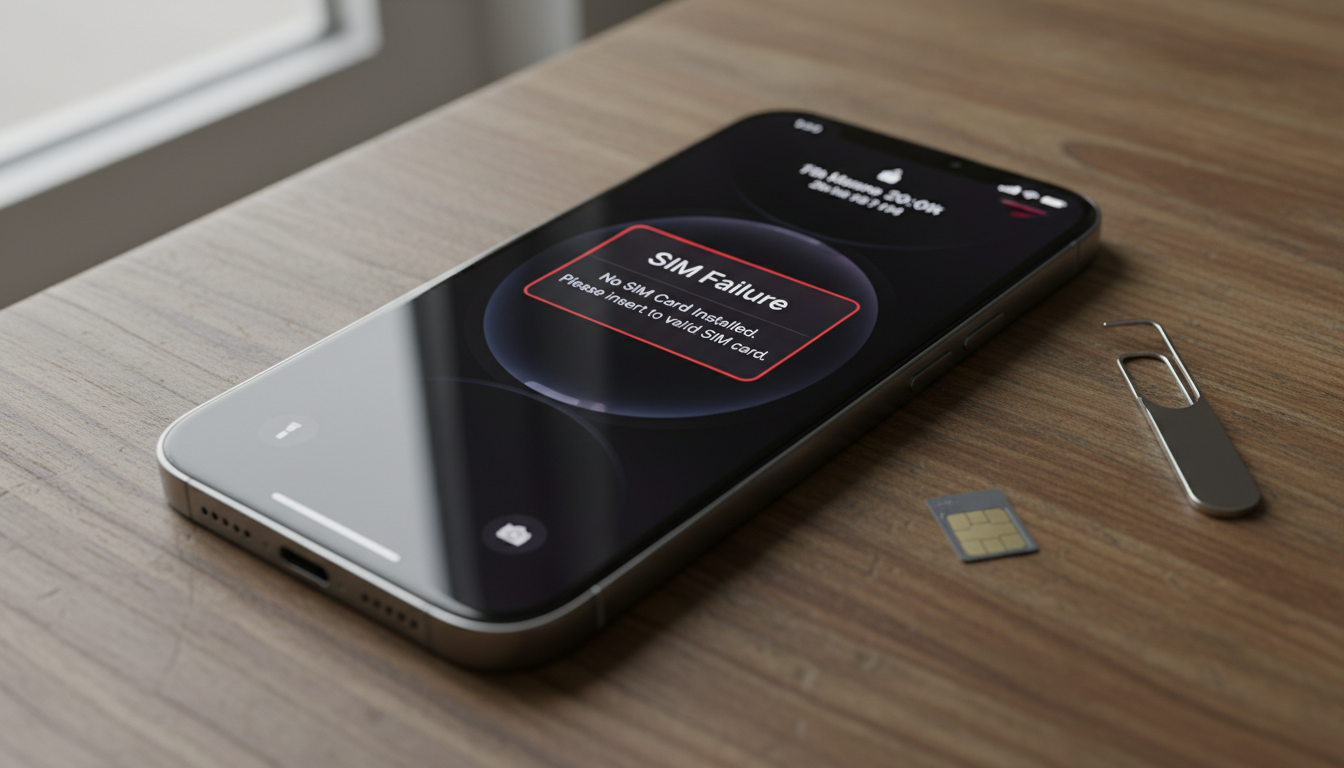
If you have a physical SIM, mechanical issues are the top suspect. Grab a SIM eject tool or a sturdy paperclip and pop the tray out from the side of the device. Inspect the card for visible scratches or grime. Use a soft, lint-free cloth to gently wipe the gold contacts. Ensure the card sits perfectly flush in the tray before sliding it back in. If the tray feels loose or damaged, that physical gap could be the culprit causing the SIM card error.
Advanced Software Solutions for Persistent Glitches
If the physical hardware seems fine, the problem likely lies deep within the software configuration. Phone settings can become corrupted, or legacy files might clash with new network standards. In 2025, carrier updates are pushed frequently to support advanced 5G and 6G bands, and missing one can leave your device in the dark.
Update Carrier Settings and iOS
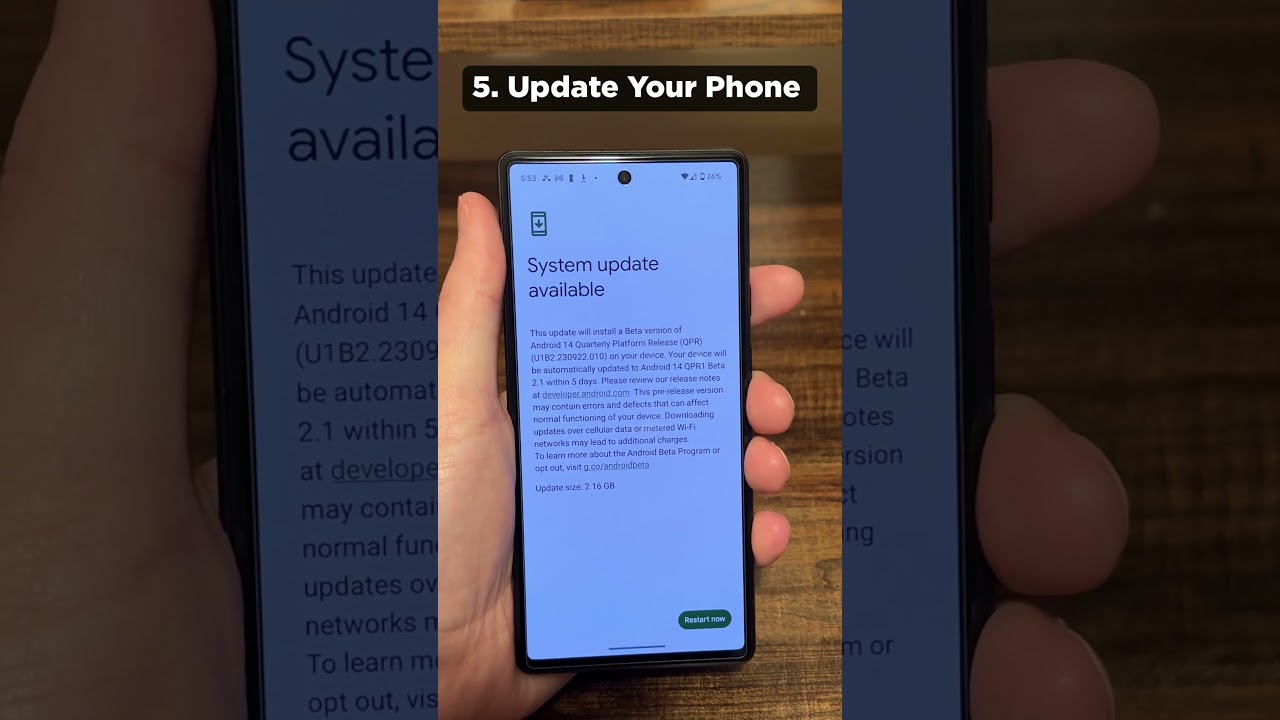
Your iPhone needs the latest instructions from your provider to talk to the towers effectively. Go to Settings > General > About. If a carrier update is pending, a prompt will appear immediately—tap “Update.” Concurrently, ensure your iOS is current via Settings > General > Software Update. An outdated system is a frequent cause of network issues because it lacks the necessary drivers for modern infrastructure.
Reset Network Settings
When specific configuration files get corrupted, a broad reset is necessary. This process is like factory resetting just the antenna portion of your phone. Navigate to Settings > General > Transfer or Reset iPhone > Reset > Reset Network Settings. Be aware: this will wipe saved Wi-Fi passwords and Bluetooth connections, but it clears out any “digital cobwebs” blocking the SIM.
Hardware Checks and System Recovery
If the error persists, we need to rule out the SIM card itself versus the phone’s internal reader. This is a process of elimination similar to automated failure attribution used in server diagnostics—isolating the variable to find the fault.
Cross-Testing with Another SIM
The definitive test involves swapping hardware. Borrow a working SIM card from a friend or family member and insert it into your iPhone. If your phone connects instantly, your original SIM card is likely damaged or deactivated, requiring a SIM card replacement from your carrier. However, if the “SIM Failure” message remains with the borrowed working card, the issue lies with your iPhone’s hardware or firmware.
Using System Repair Tools
Sometimes the iOS firmware itself has deep-seated errors that a standard reset cannot reach. In these cases, technology enthusiasts often turn to third-party utility software like FoneGeek iOS System Recovery. These tools can rebuild the core iOS file structure without deleting your data. It addresses the sort of corruption that makes a system unusable, akin to needing to fix midieditor file errors to get a program running smoothly again. If you choose this route, ensure you follow the instructions carefully to avoid data loss.
If all else fails, professional help is the final step. Contact your wireless carrier to ensure your account is active and free of blocks. If the carrier confirms the line is good, visit Apple Support. Internal hardware failure—such as a disconnected antenna cable or a fried logic board component—requires expert repair.
Does SIM failure mean my iPhone is broken?
Not necessarily. In most cases, SIM failure is caused by software glitches, dirty contacts on the SIM card, or outdated carrier settings. Physical hardware damage to the phone is a less common cause.
Will resetting network settings delete my photos?
No, resetting network settings only removes connection-related data such as saved Wi-Fi networks, Bluetooth devices, and VPN configurations. Your photos, apps, and contacts remain safe.
How do I know if I need a new SIM card?
The best way to verify this is to insert your SIM card into another working phone. If the failure persists on the second device, your SIM card is faulty and needs replacement. If it works there, the issue is likely with your iPhone settings or hardware.
Can an eSIM fail like a physical card?
Yes, but the causes are different. An eSIM won’t suffer from physical dust or scratches, but it can fail due to software profile corruption or accidental deletion of the cellular plan from the settings menu.

Jordan has a knack for turning dense whitepapers into compelling stories. Whether he’s testing a new OpenAI release or interviewing industry insiders, his energy jumps off the page—and makes complex tech feel fresh and relevant.



How to use an ap spanish score calculator for accurate results in 2025
Optimizing Your Strategy with an AP Spanish Score Calculator Achieving a top tier result on the AP Spanish Language and...


A look at interesting things that start with ai
Unveiling the Hidden Layers of Modern Intelligence The landscape of technology has shifted dramatically by 2025. Artificial Intelligence is no...

sim failure explained: common causes and quick fixes in 2025
Your iPhone is your lifeline to the digital world, handling everything from urgent emails to streaming the latest podcast. So,...


delta dawn meaning: understanding the origin and impact of the classic song
Unpacking the Delta Dawn Meaning: A Narrative of Lost Love and Mental Health The phrase Delta Dawn meaning triggers a...


Unveiling the Top AI Math Solver of 2025 for Flawless Calculations
The Evolution of Flawless Calculations in the Era of Artificial Intelligence The year 2025 marks a definitive turning point in...


Grammarly vs. ChatGPT: Which Tool Will Enhance Your Writing Skills in 2025?
Navigating the AI Writing Landscape of 2025 In the rapidly evolving landscape of artificial intelligence-powered writing tools, two giants stand...


What you need to know about online platforms in 2025
The Shifting Landscape of Online Platforms and Digital Trends The digital ecosystem in 2025 is characterized by a massive fragmentation...

How to enable and customize pixel notification dots on your Android device
Mastering Visual Alerts: How to Enable and Customize Pixel Notification Dots In the fast-paced digital landscape of 2025, managing the...


What is big sip and how does it change beverage trends in 2025?
The Era of the Big Sip: Redefining Beverage Culture The concept of the Big Sip in 2025 represents a definitive...


ways to boost your productivity in 2025
The year 2025 brings a distinct shift in how professionals approach their daily grind. With the rapid integration of advanced...


Exploring the Top AI Translators of 2025: Our Comprehensive Comparison!
Global Communication in the Age of Intelligent Connectivity In the interconnected landscape of 2025, the boundaries of language are rapidly...


ChatGPT vs QuillBot: Which Writing Tool Will Dominate in 2025?
The landscape of digital creation has shifted dramatically. As we navigate through 2025, artificial intelligence has ceased being merely an...
robert plant net worth in 2025: how much is the led zeppelin legend worth today?
Robert Plant Net Worth 2025: Led Zeppelin Legend’s $200 Million Fortune The trajectory of rock royalty is often defined by...


What is cgp论坛 and how can it benefit your online community in 2025?
Understanding the Role of cgp论坛 in the 2025 Digital Landscape In the rapidly evolving digital ecosystem of 2025, the concept...


Exploring trial versions nyt: what to expect in 2025
The Evolution of Trial Versions in 2025: Beyond Simple Software Access The concept of trial versions has undergone a radical...


How to boost your local business with a WordPress service area plugin
In the digital landscape of 2025, visibility is synonymous with viability. A stunning website serves little purpose if it remains...


do wasps make honey? uncovering the truth about wasps and honey production
Decoding the Sweet Mystery: Do Wasps Make Honey? When the conversation turns to golden, sugary nectar, honey bees vs wasps...


How to set up Google SSO in alist: a step-by-step guide for 2025
Streamlining Identity Management with Google SSO in Alist In the landscape of 2025, managing digital identities efficiently is paramount for...


How to Select the Optimal AI for Essay Writing in 2025
Navigating the Landscape of High-Performance Academic Assistance In the rapidly evolving digital ecosystem of 2025, the search for optimal AI...


ChatGPT vs Writesonic: Which AI Tool Will Lead the Way for Your Web Content in 2025?
The digital landscape of 2025 has fundamentally shifted the baseline for productivity. For data-driven marketers and creators, the question is...
-

 Open Ai2 months ago
Unlocking the Power of ChatGPT Plugins: Enhance Your Experience in 2025
-
 Open Ai2 months ago
Comparing OpenAI’s ChatGPT, Anthropic’s Claude, and Google’s Bard: Which Generative AI Tool Will Reign Supreme in 2025?
-

 Open Ai2 months ago
Mastering GPT Fine-Tuning: A Guide to Effectively Customizing Your Models in 2025
-

 Ai models2 months ago
GPT-4 Models: How Artificial Intelligence is Transforming 2025
-

 Open Ai2 months ago
ChatGPT Pricing in 2025: Everything You Need to Know About Rates and Subscriptions
-

 Ai models2 months ago
The Ultimate Unfiltered AI Chatbot: Unveiling the Essential Tool of 2025